Tax Rates
Dynamic Calculation. Multiple Tax Rates.
With Collect for Stripe, Tax Rates are first imported from Stripe. You can then create, edit, and manage Taxes in the Collect app or Web Dashboard.
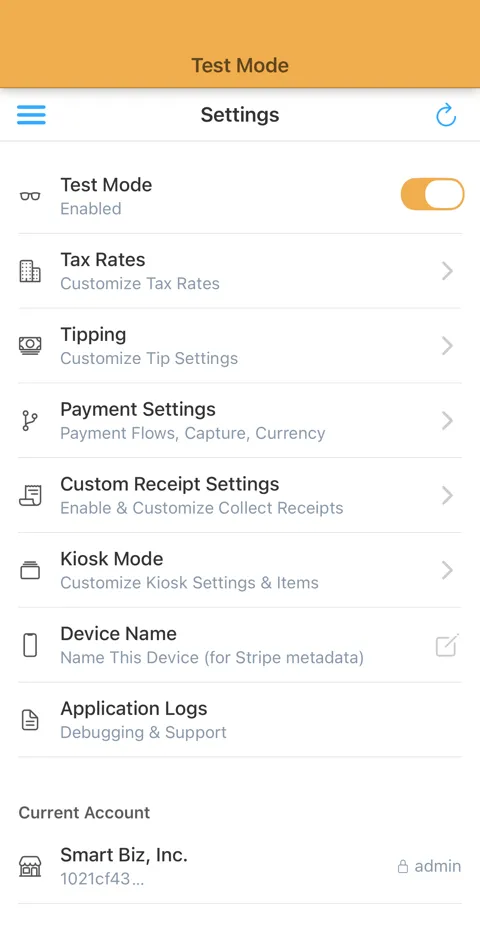
In the app, open Settings → Tax Rates to see rates from Stripe and choose which ones to apply by default.
The way taxes are applied is set in your Payment Flow, which you can create, edit or switch any time.
More on that below.
Payment Flow Examples
If you have your Tax setting in the selected Payment Flow set to ‘Always’, the app will always apply any Tax you’ve set to Apply by Default.
If you do not want a tax applied, turn off Apply by Default.
If you would like to have default Tax Rates applied, then have the opportunity to add or remove any available tax during processing, set your Tax setting to ‘Ask’. In that case, the app will always ask, with defaults pre-selected. This is shown in the main feature image for this feature.
A Payment Flow with Tax set to ‘Never’ will skip tax calculation entirely, even if you have Tax Rates created and set to “Apply by Default”.
Stripe Tax
We use Stripe Tax objects to ensure a cohesive experience across your Stripe business ecosystem.
Start using Tax Rates today.


Explore More Features
Tap to Pay on Android
Turn your Android device into a mobile credit card reader. No hardware needed.
Tap to Pay on iPhone
Turn your iPhone into a mobile credit card reader. No hardware needed.
Collect for Readers
Run Collect as an on-reader app on your S700 or S710. No phone or tablet required.
Contactless Payments
Support for Bluetooth readers like the Stripe Reader M2 and WisePad 3.
Tipping
Just set your Payment Flow to 'Ask'. Customize your tip percentages.
Interac Payments
Full support for Interac Debit in Canada.
Authorize-Only Charges
Reserve funds on a card now and capture them later.
Custom Receipts
Add your logo, website, and custom footer message to email receipts.